MIDI Noodle · Kontrol S keyboards
Swap synths from your Kontrol S, no menus.
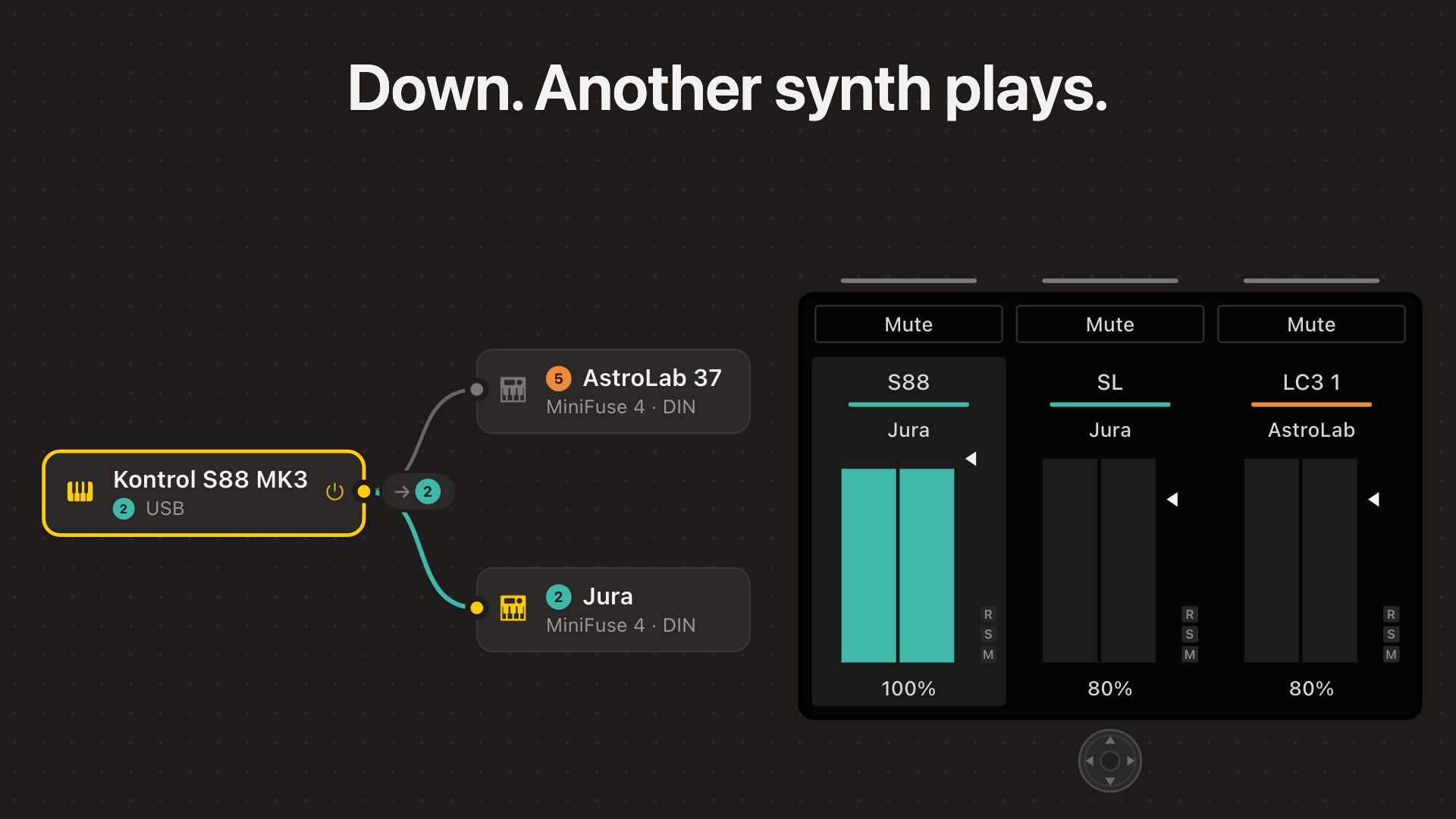
On its own, a Kontrol S MK3 changes the keys' MIDI channel in its MIDI template (Shift + Browser, Edit, find Channel), or you keep a template per channel and switch. Menus either way. With MIDI Noodle you nudge the wheel down, and the keys play the next synth.
Your setup on the screen
No DAW needed: MIDI Noodle drives the screen through the keyboard's DAW port. Each input card and sequencer is a column: the card's name on top, and on the second line, under the colour bar, the channel it plays on, with your name and colour for it.
Columns
Eight at a time, in canvas order. Show on Kontrol S in a card's inspector picks which.
Banks
The sidebar's Left and Right arrows page to the next eight.
Select
Turn the wheel, or nudge it left or right, to move between columns; the card is selected on the Mac too.
Transport
Play, Stop and Metro run MIDI Noodle's sequencers and clock. Stop while stopped is Panic: every held note ends.
Up, down, another synth
Nudge the wheel up or down on an input's column: each step moves the keys one channel, straight away.
1 · Select
Turn the wheel to the S88's column.
2 · Down
4, 3, 2: each step applies at once, and the second line names the synth: "Jura".
3 · Play
The Jura plays; the AstroLab on 5 goes quiet.
The Mac follows
The card's channel badge and its lit cable move with every step. Held notes end on the old channel, so nothing hangs.
One input, two synths
Cable the S88 to two synths, each on its own channel, and it gets a column per cable: each names the synth it reaches, and up/down and Mute act on that cable alone.
Up/down
Moves that cable's channel; the other synth stays where it is.
Mute
Switches that cable off; the column stays, dimmed.
Knob, Shift + Mute
The card's Level and Solo, on either column.
Mute, solo and level
The buttons and knob above the keys act on the same card as on the Mac.
Mute
Switches the card off. The button and its light go blue.
Shift + Mute
Solos the card.
Knob
Sets the card's Level, 0 to 125%; held notes follow it. One turn is one undo step.
Meters
Bounce in the channel's colour as the card plays.
Effects on the screen
Arpeggiator, Note Repeat, Octave Shift, Transpose, Chord and Key Lock can be columns too: switch on Show on Kontrol S in the card's inspector. The effect's name is on top, the setting its knob turns on the second line ("Swing"), the value at the foot.
Mute
Switches the effect off; notes pass through untouched.
Mute · Note Repeat, Octave Shift
Engages them instead, on the beat or bar the card is set to. The column blinks until then.
Up/down
Picks the setting the knob turns, Level last; the second line follows: "Gate".
Knob
Turns the picked setting. Each card keeps its pick.
One wheel, two views
The 4D wheel moves you around, nudges change things, and a push swaps between the columns and the detail view of the selected card.
Push: every setting, a knob each
Push the wheel and the whole screen is the selected card: the card first, then one setting per column, each on the knob below it.
Column 1
The card: its Level on the knob, Mute and Solo as ever. With more than one page, the page is under its name: "Page 1/2".
Columns 2 to 8
One setting each: its name on top, its value at the foot. Their Mute lights stay dark.
Wheel
Turning it moves the highlight along the settings; up/down steps the highlighted one.
Pages
The sidebar arrows page through more than seven.
Done
Push again: you're back on the same columns.
What each effect shows
Every setting from the card's inspector that the keys can reach, in this order.
Arpeggiator
Pattern, Rate, Octaves, Gate, Swing, Velocity, Time shift, Randomness, Latch. Randomness and Latch are on page 2. Latch's column says "Toggle": its Mute flips it, lit while Latch is off.
Note Repeat
Rate, Gate.
Octave Shift
Amount.
Transpose
Amount, Octave.
Chord
Shape, Inversion, Octave.
Key Lock
Key, Scale, Snap.
Inputs and sequencers
Channel, as up/down steps it.
Knob: the setting you picked
On an effect column the knob turns the setting you last picked, with up/down or in the detail view, and the second line names it: "Gate". Before you pick, each effect starts on one of its own.
Arpeggiator
Swing: Song (follows the transport), then 50 to 75%.
Note Repeat
Gate.
Chord
Octave, −2 to +2.
Transpose
Amount.
Key Lock
Snap.
Octave Shift
Level, as on inputs.
Glide
Settings › Devices › Knob glide eases Level, swing and gate to each new value.
Plug-in: the synth's own knobs
Press Plug-in and the S88's own plug-in page shows what the selected column plays through: its effects and AU plugins, each one's knobs eight at a time, named and valued as the plugin shows them.
Chain
Every effect and AU plugin the column's cables reach. Pick one from the bar at the top.
Knobs
Turn its parameters; the S88 follows a change made in the plugin's own window.
Pages
The sidebar arrows page through the rest; an AU instrument's own Volume comes last.
Mixer
Back to the columns.
Kontrol S support is in the MIDI Noodle beta and has been tested on the S88 MK3. The S49 and S61 MK3 share its screen and should work the same, but haven't been tried yet.
Keep exploring
Live effects
Key Lock, chords, harmony, arpeggios, velocity and feel, right on the cable.
Performance effects
Hold a pad: latch the chord, roll the notes, jump an octave, or kill the sound.
USB & DIN
USB gear and 5-pin DIN synths behind your interface, routed together by name and channel.
Untangle your cables
USB, DIN and network gear on one canvas, named after what it is. Plus a planner for the cables.
Channel Swapper & Mute
Tap a pad to move a part to another synth, or silence a channel, on the beat.
Control cables
Turn a knob and a setting follows. Hit a pad and something happens.
Sound on your Mac
Hear your patch with nothing plugged in: the Mac Synth, your own Audio Unit instruments, and AU MIDI effects.
MIDI Noodle is available to pre-order for Mac.
Pre-order it, or leave your email and we'll tell you when it's out.